
User Guide
How to Use My Account
From signing up with an invitation code to hotel bookings, training appointments and payment: every step with the screen you will see on your phone, in order.


The screenshots show the panel in Turkish. In the panel, tap EN at the top to use it in English; every screen and button is the same.
Module 1
Membership and first sign-in
A PatiLee account opens only with an invitation code; there is no self sign-up on the website. When you call us or visit, we register you and send an invitation code to your phone.
Swipe sideways for the next step →
-
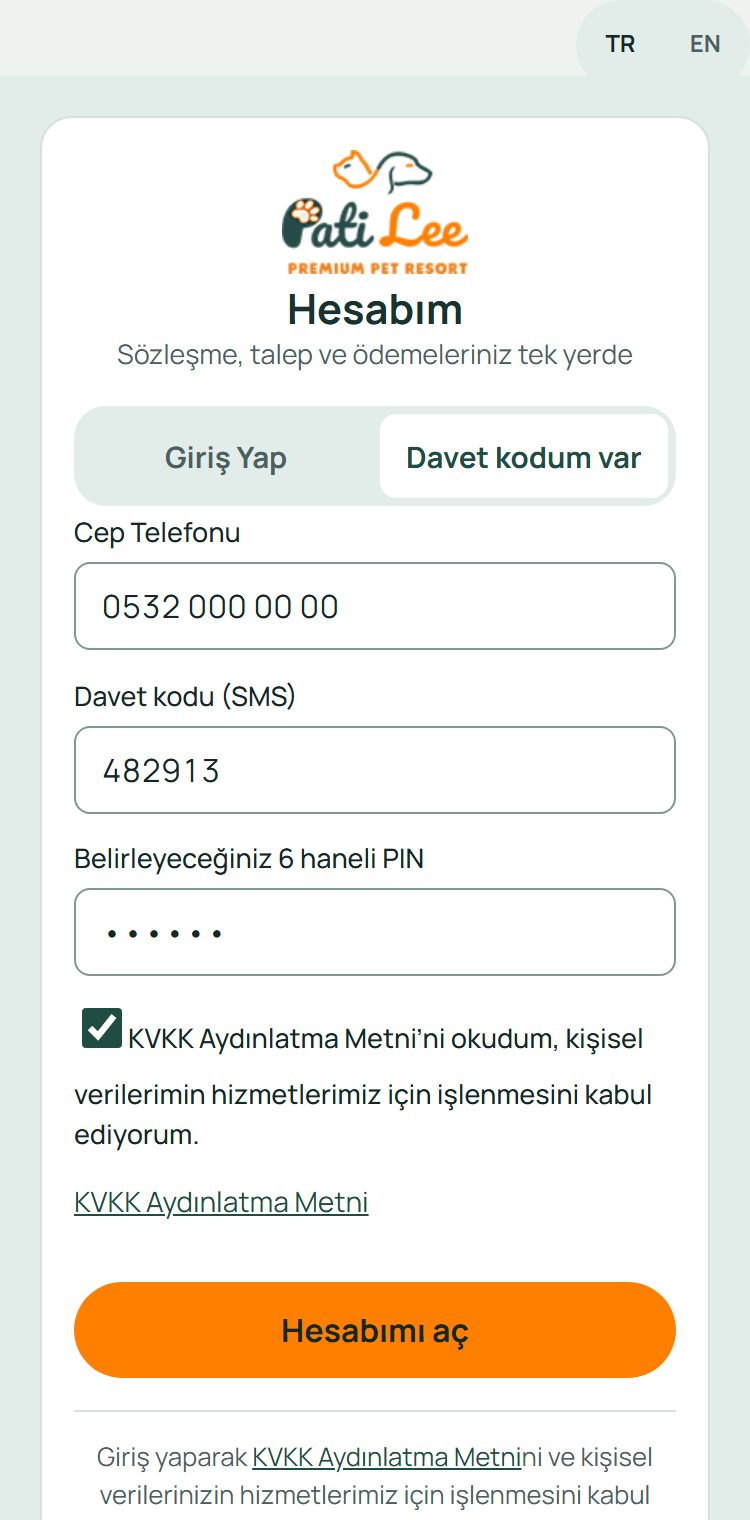
Open your account with the invitation code
On the My Account sign-in page, tap the “I have an invitation code” tab.
- Enter your mobile number.
- Enter the 6-digit invitation code sent by SMS (valid for 48 hours).
- Choose a 6-digit PIN; you will always sign in with this PIN.
- Tick the privacy notice box and tap “Open my account”.
-
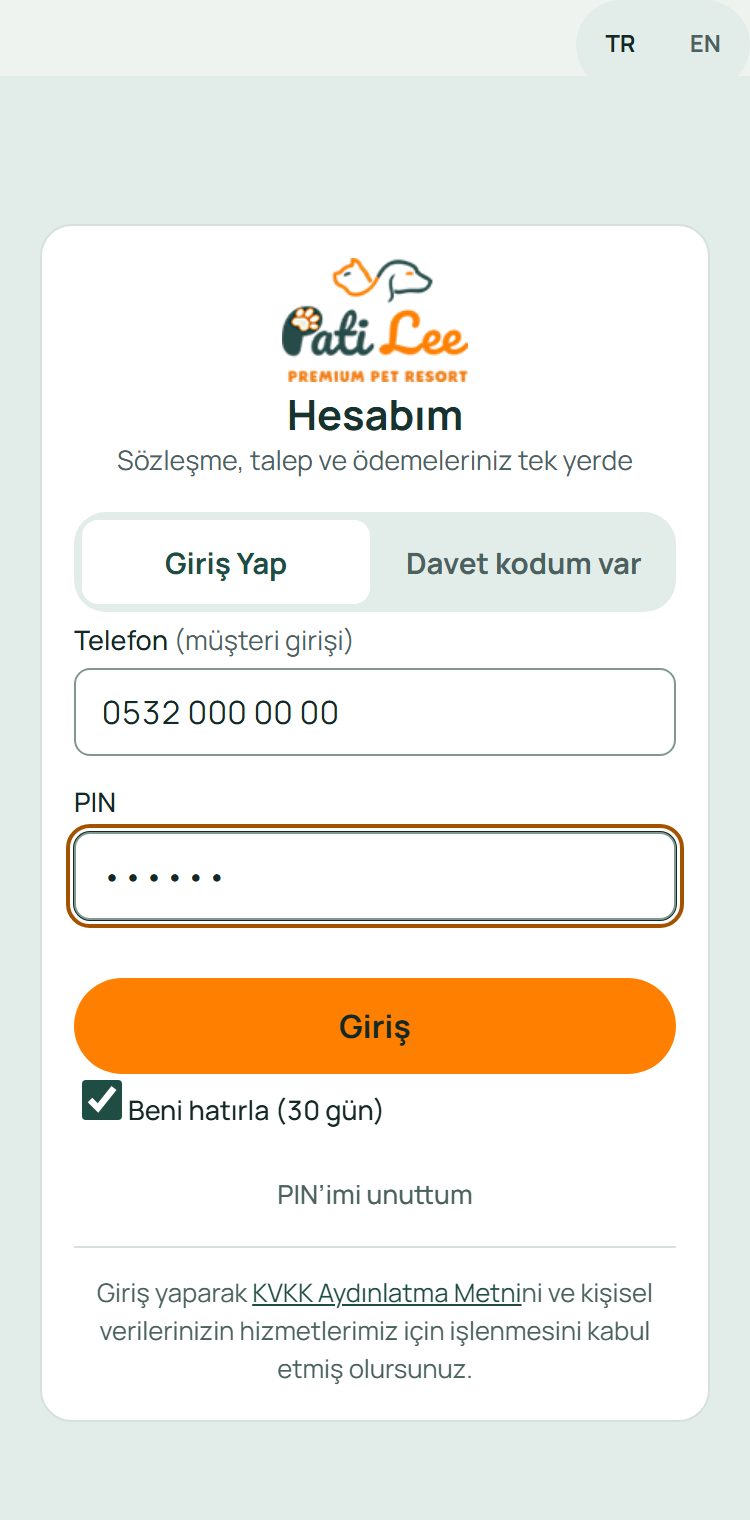
Next time: phone + PIN
On the “Sign in” tab, just enter your phone number and PIN.
- With “Remember me” ticked, your phone stays signed in for 30 days.
- Forgot your PIN? Use “Forgot my PIN” to set a new one.
-
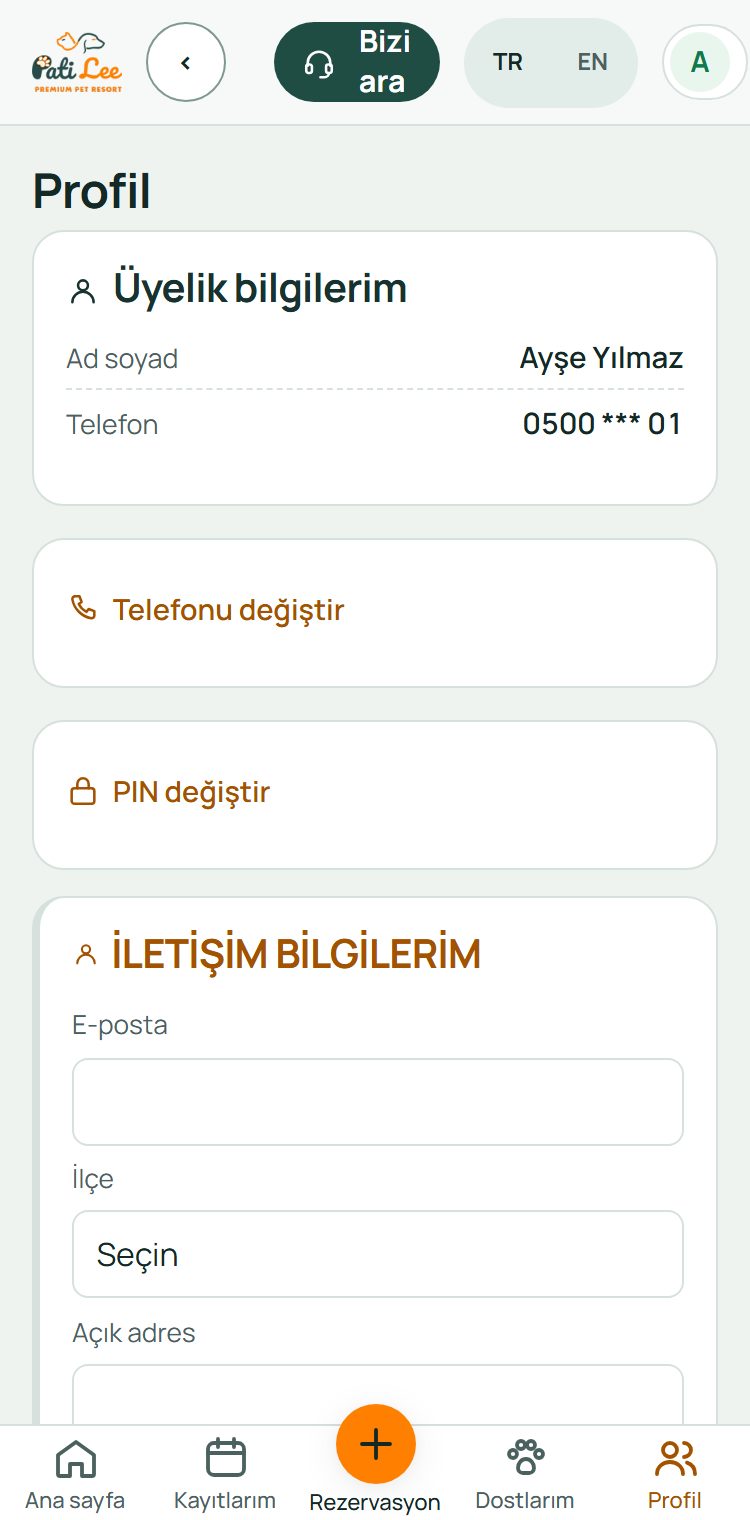
First sign-in: your details
On your first sign-in the panel takes you through three short steps: Details → Pets → Approval and signature. The first step asks for your name, e-mail, address and a second contact person (whom we call if we cannot reach you).
- You can change these later on the Profile screen (shown here).
-
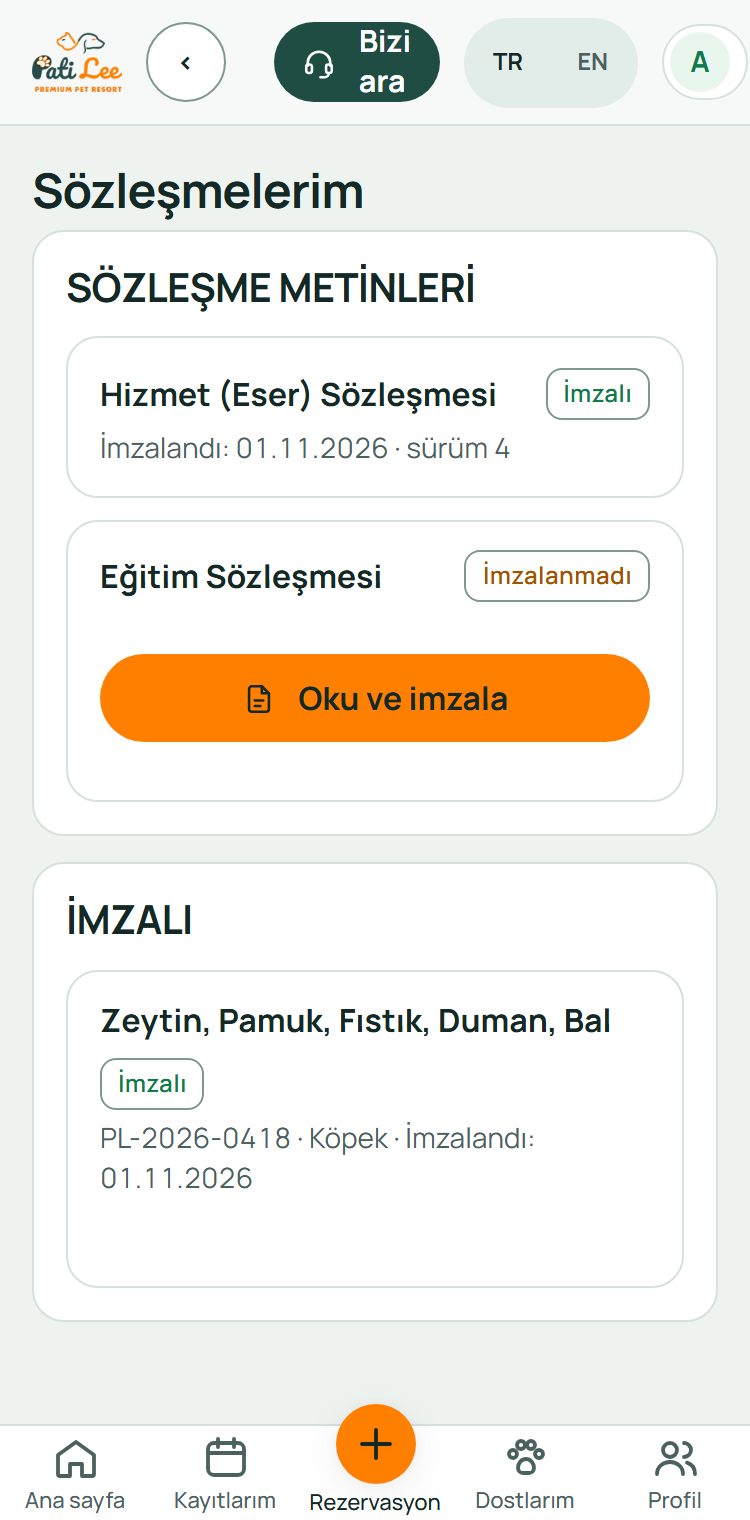
Approval and signature
In the second step you add your pets (explained in the next module). In the last step you read and accept the Service Agreement and the privacy notice, then sign with the code sent to your phone.
- Your signed agreements are always on the My agreements screen.
- Your second contact also receives a signing link.
-
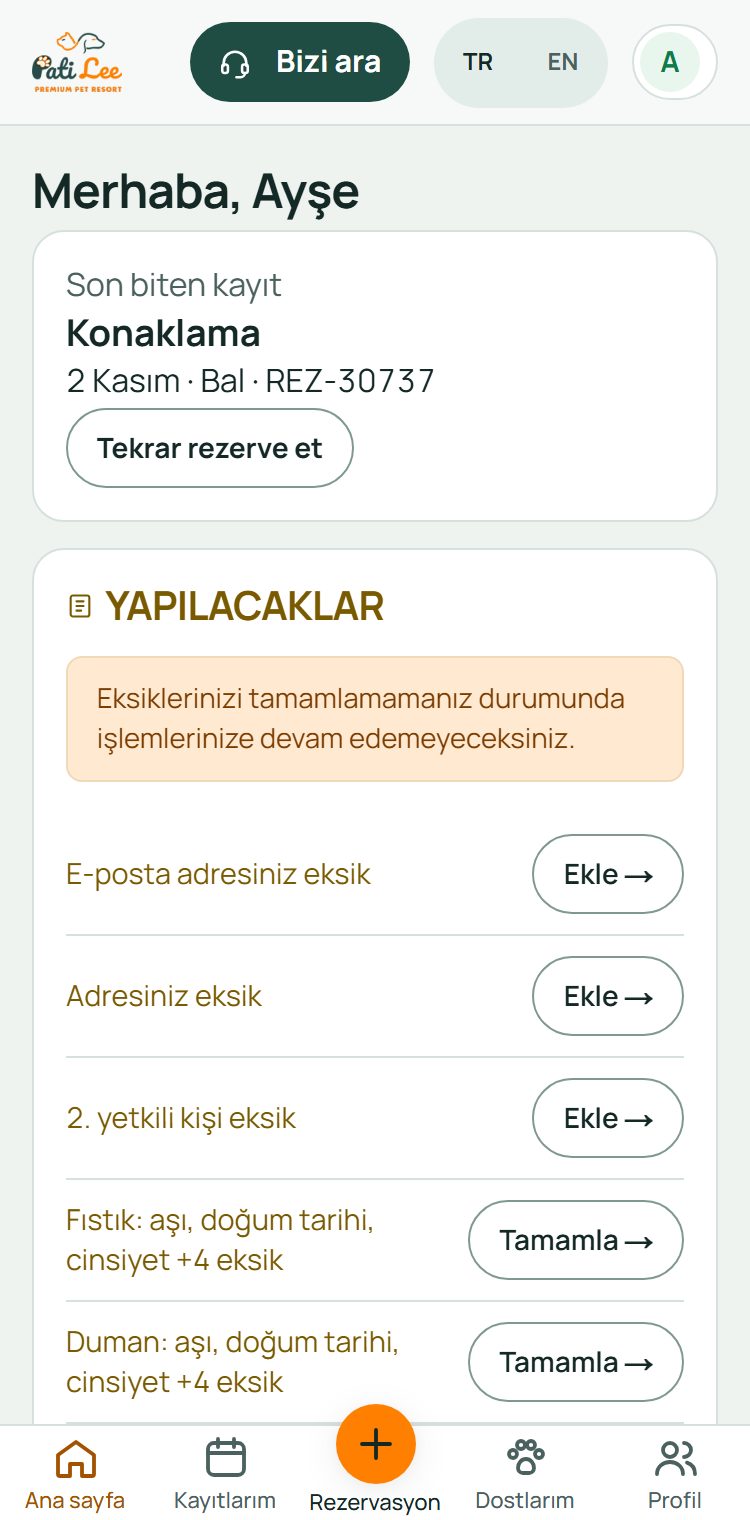
Home and To-dos
After signing in you land on Home. Your next booking is at the top; anything missing is listed under “To-dos”.
- “Add” / “Complete” next to each line takes you to the right screen.
- If a blocking item is missing, bookings and appointments cannot be made; complete it first.
Module 2
Pet details and vaccination card
Before booking, each pet’s profile must be complete: breed, date of birth, sex, neutered status, 15-digit microchip, vaccination card, vet and socialisation permission.
Swipe sideways for the next step →
-
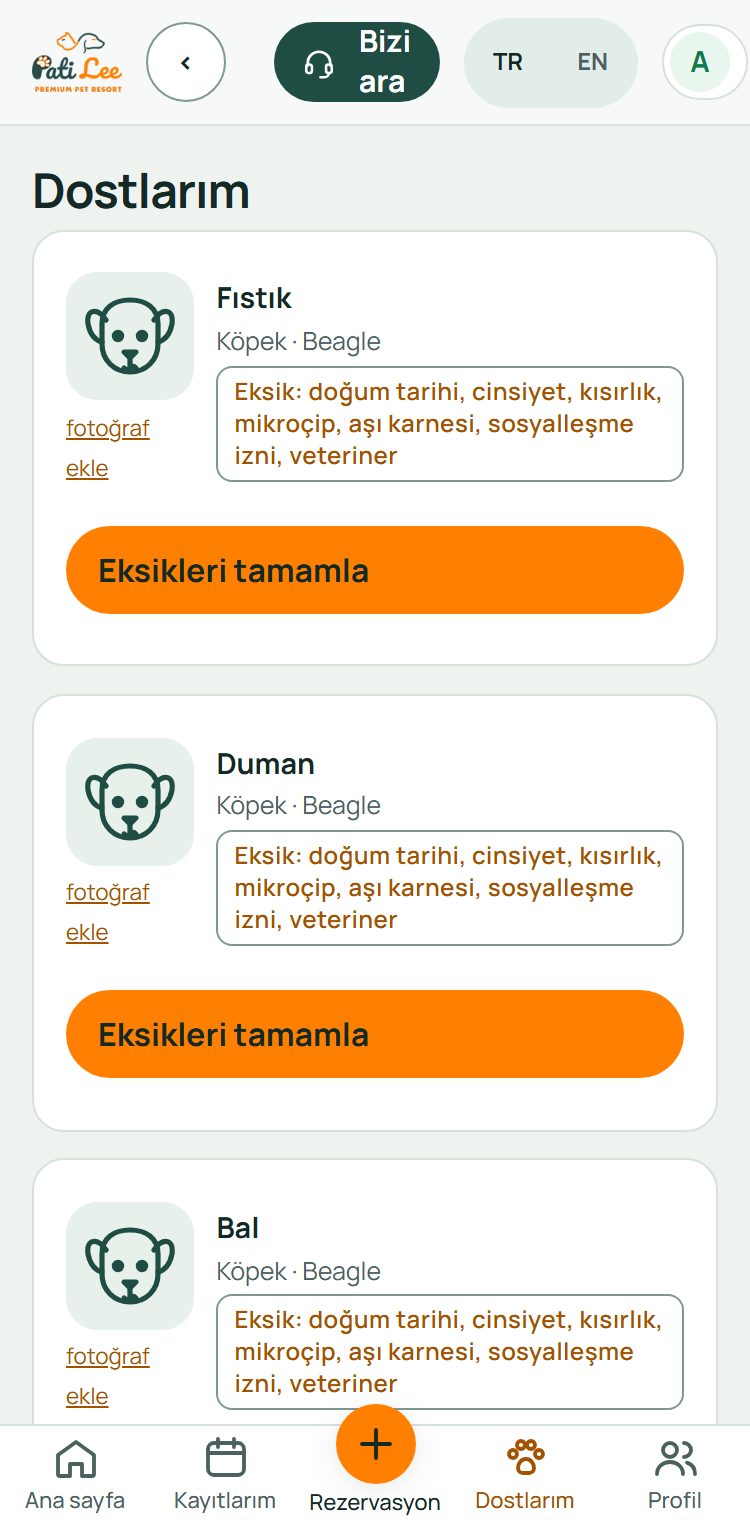
My pets
Tap My pets in the bottom bar. Each pet card lists missing details in a yellow box.
- Use “add photo” to upload your pet’s profile photo.
- If something is missing, tap “Complete missing details”.
-
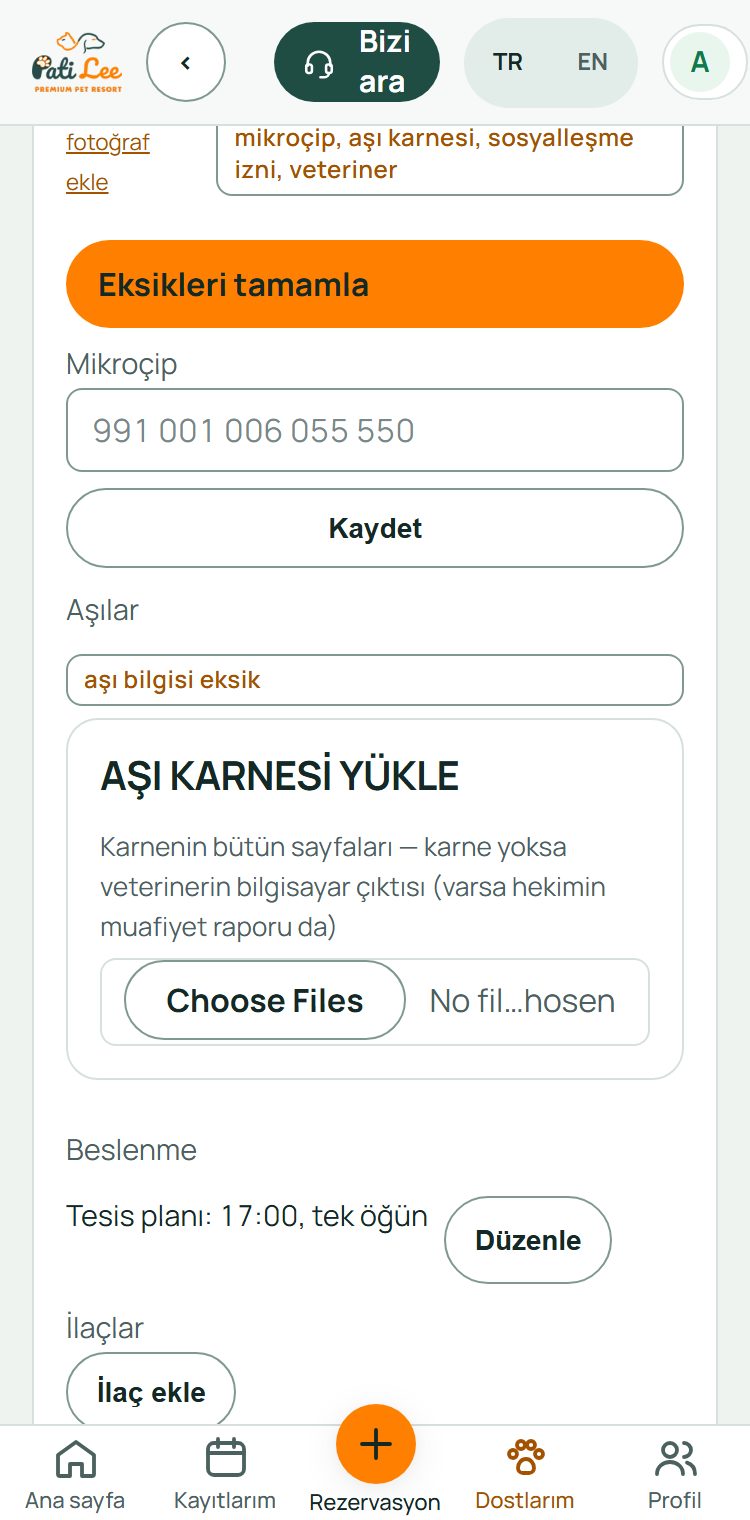
Complete the details, upload the card
The card opens and asks only for the missing fields. Tap “Save” under each section.
- Choose date of birth, sex and neutered status; type the 15-digit microchip number.
- In “Upload vaccination card”, tap the file button; your phone opens the camera or gallery.
- Shoot every vaccine and parasite page of the card, sharp, well lit and flat. No card? Upload your vet’s computer printout, plus the vet’s exemption report if you have one.
- The card is read; vaccines, dates and the microchip number on the card are written to your pet’s record.
- The same card also holds the feeding plan, medication and vet details.
-
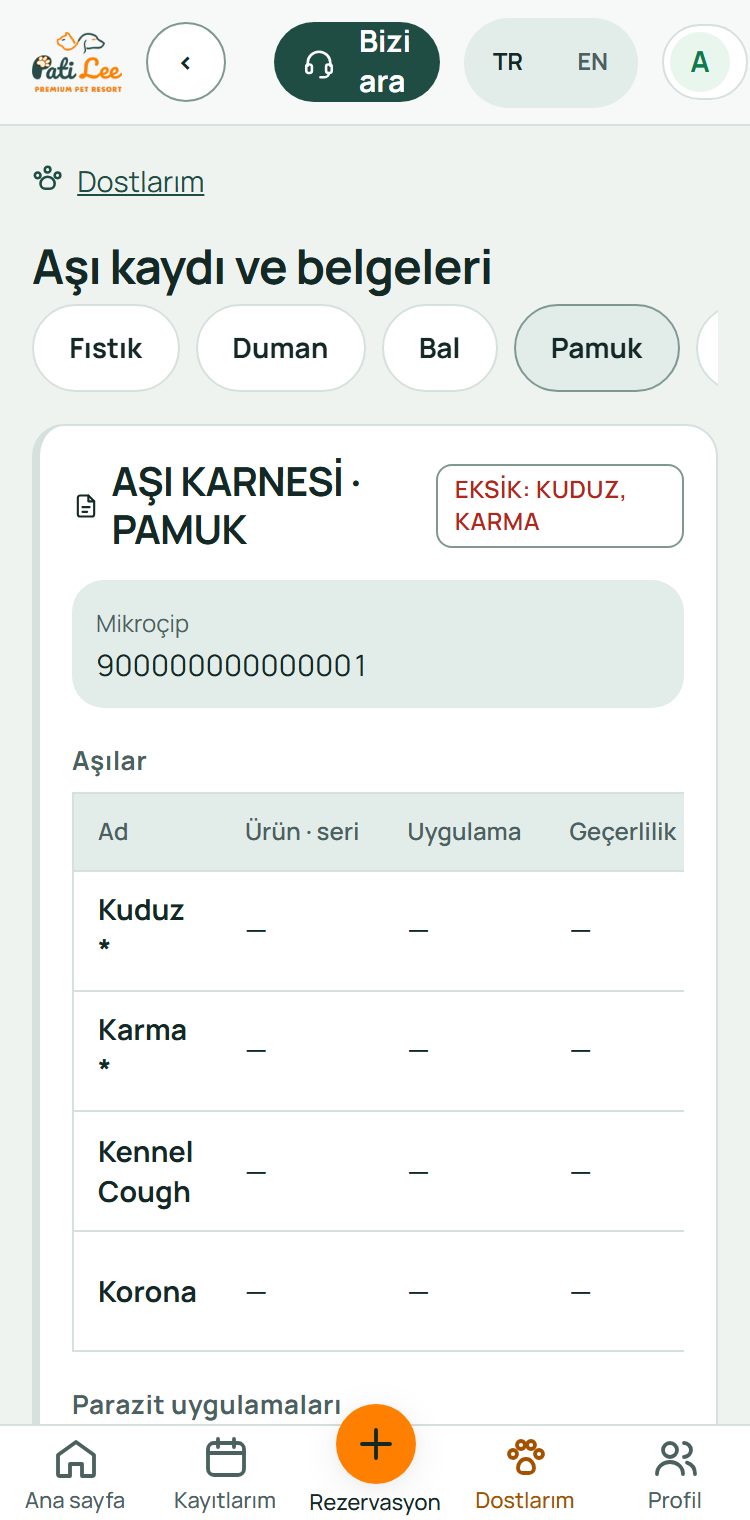
Check the vaccination record
My pets › “Vaccination record and documents” shows each vaccine’s date given, valid-until date and status.
- Status reads “valid”, “missing” or “expired”.
- After renewing an expired vaccine, upload the new card page.
-
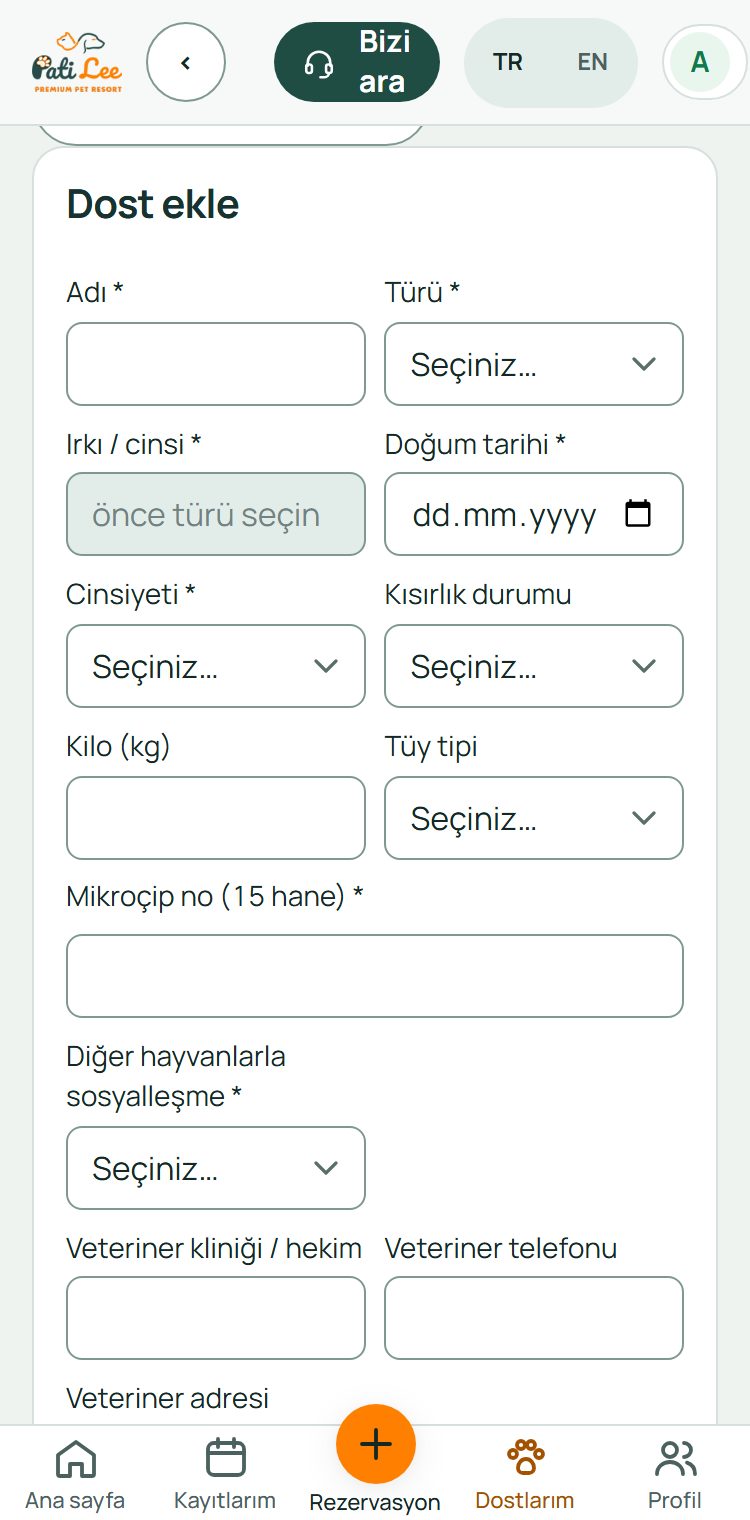
Add a new pet
Use “Add a pet” below the list to register a new pet with the same fields.
- The new pet is added to your signed agreement; you do not need to sign again.
Module 3
Hotel booking: boarding and daycare
Start with the orange “+ Booking” button in the middle of the bottom bar; it takes five steps. A booking is a request: PatiLee approves it, and it is confirmed once paid in full.
Swipe sideways for the next step →
-
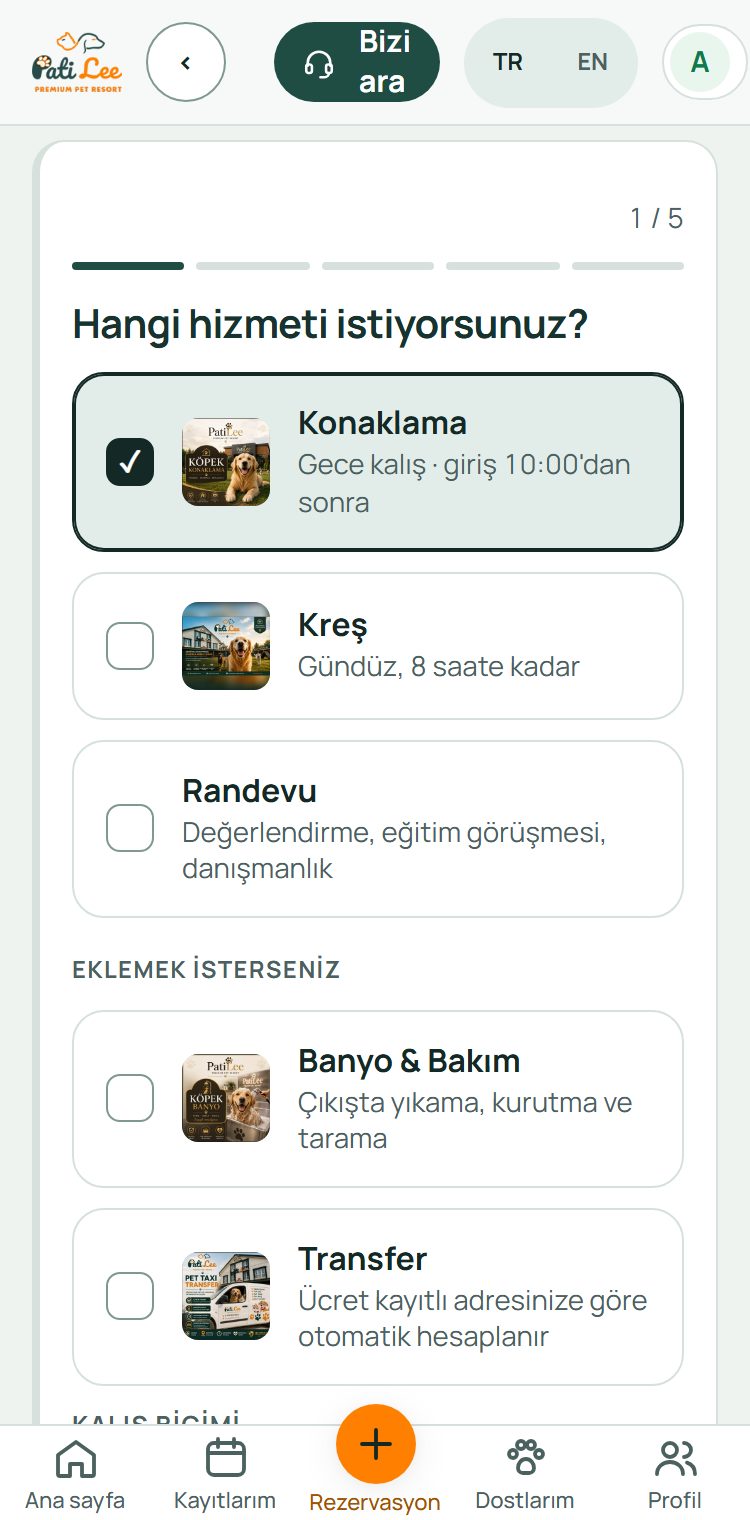
Choose the service (1/5)
Boarding (overnight, check-in after 10:00) or Daycare (daytime, up to 8 hours).
- Optionally add Bath & Grooming and Transfer; the transfer fee is calculated from your saved address.
- Tap “Continue”.
-
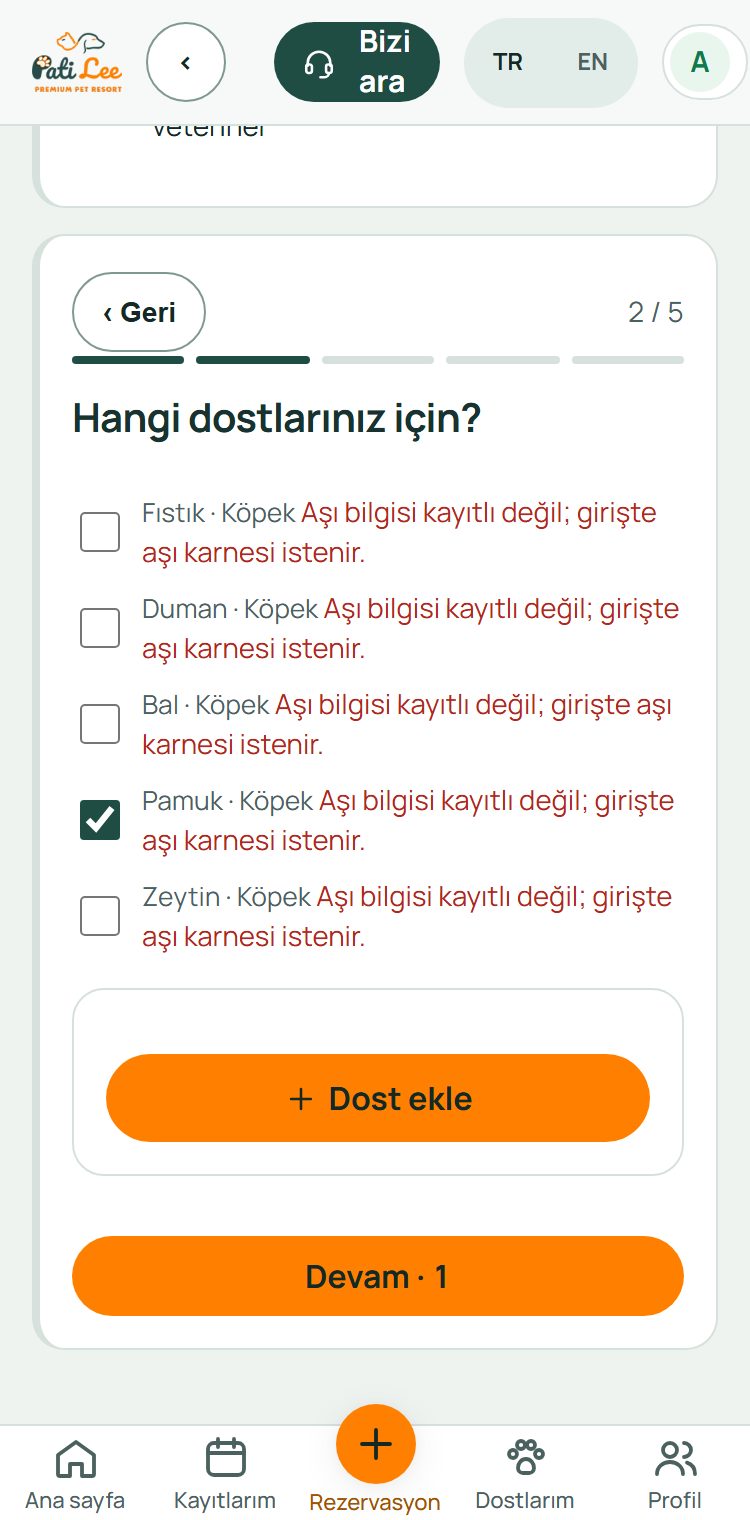
Choose your pets (2/5)
Tick the pets that will stay; several pets can share one booking.
- The “Complete before booking” box at the top lists missing profile details; tap the link to complete them.
- A missing microchip is asked here too.
-
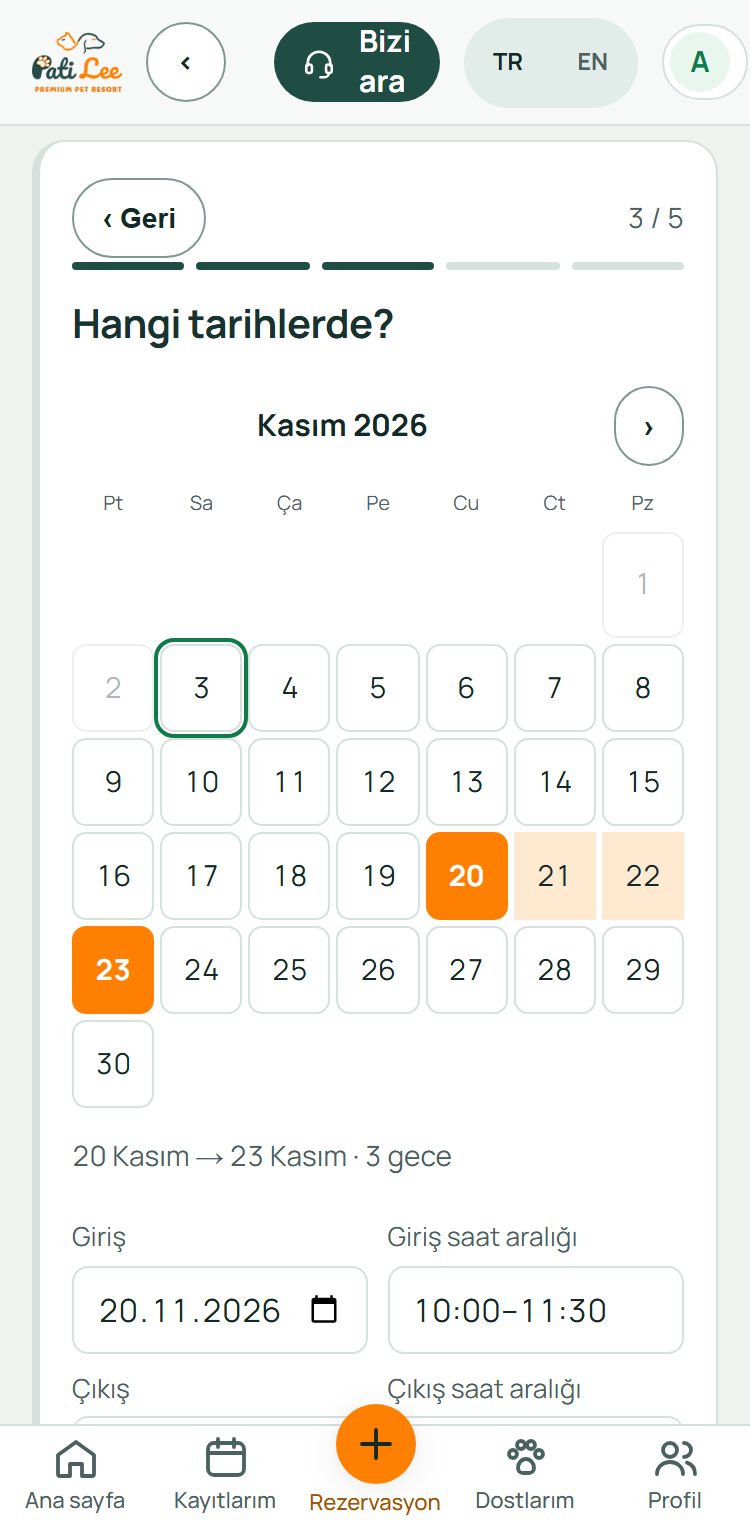
Choose the dates (3/5)
Tap the check-in day, then the check-out day on the calendar; pick the check-in and check-out time windows.
- The number of nights and the price from our price list appear right below.
- We are closed on Sundays; closed days cannot be selected.
-
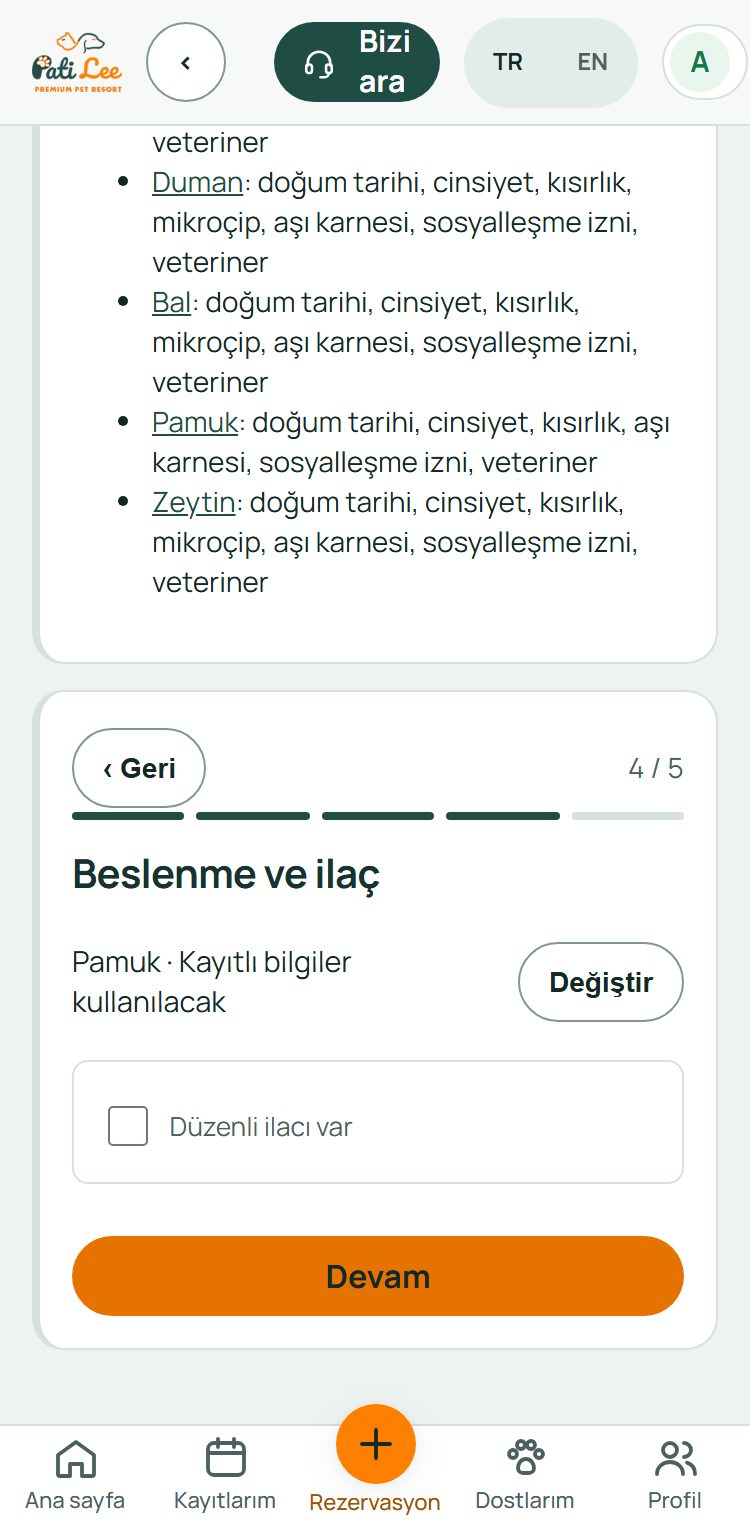
Feeding and medication (4/5)
Your pet’s saved feeding plan is used; tap “Change” if it differs for this stay.
- If your pet takes regular medication, tick the box and enter the medicine and time.
-
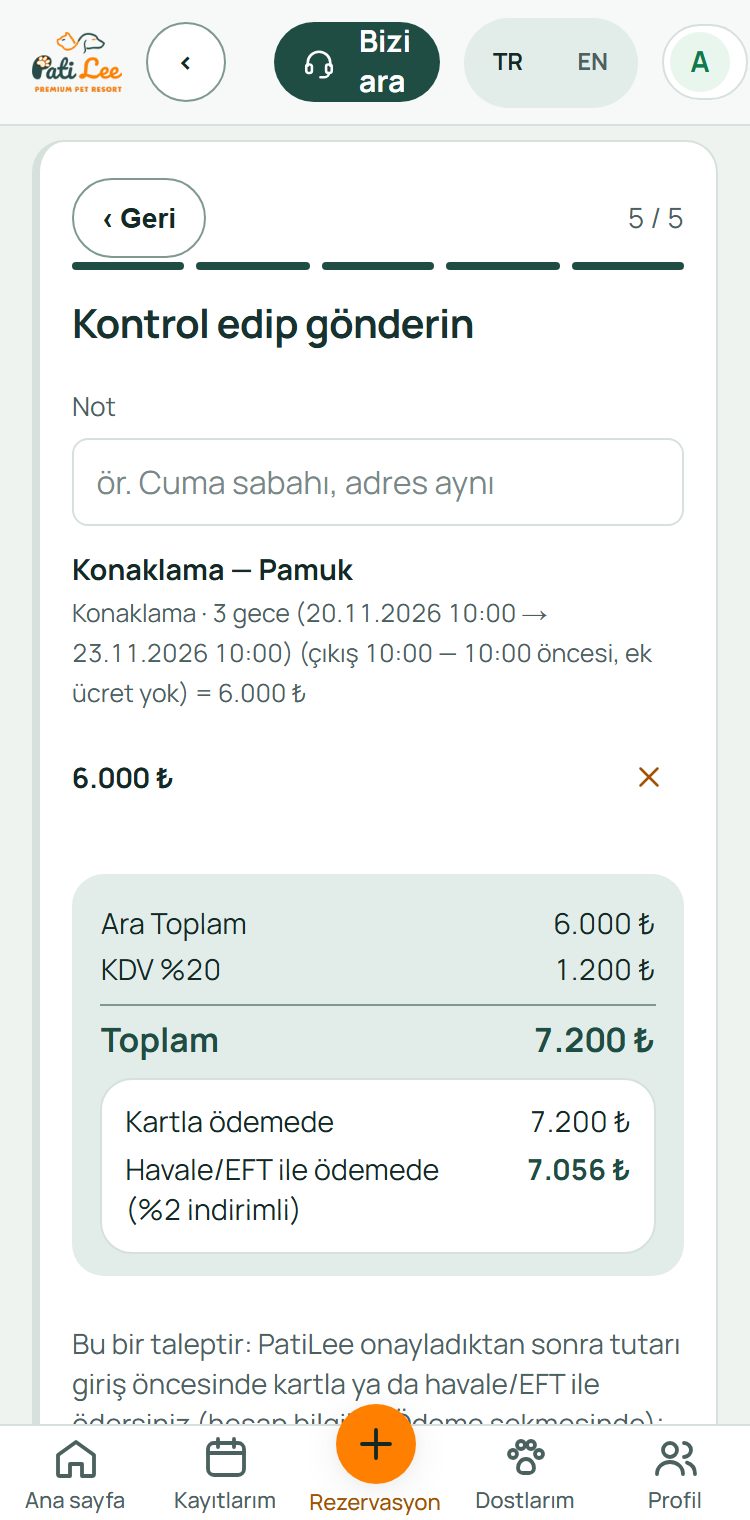
Review (5/5)
You see the stay, dates and price breakdown: subtotal, 20% VAT and total.
- The card amount and the 2% discounted bank-transfer amount are shown separately.
- Add anything we should know in the “Note” field.
-
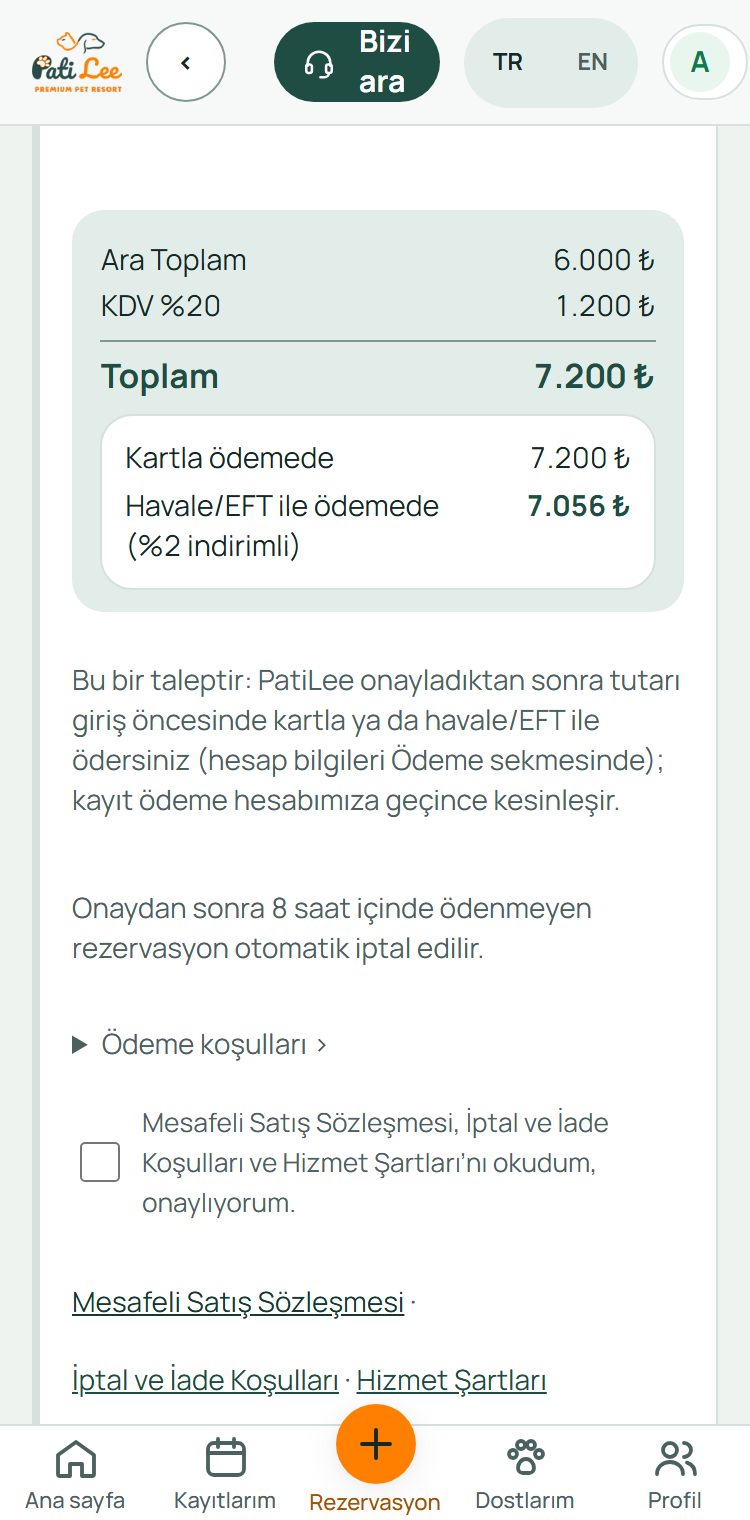
Accept and send
Tick the agreement box and tap “Send request”.
- Once PatiLee approves your request, you pay (see the Payment module).
- A booking not paid within 8 hours of approval is cancelled automatically.
- You can follow your request under My bookings › Pending.
Module 4
Training appointment
Training starts with a consultation appointment. It is booked from the same “+ Booking” screen; the pre-information form helps us prepare.
Swipe sideways for the next step →
-
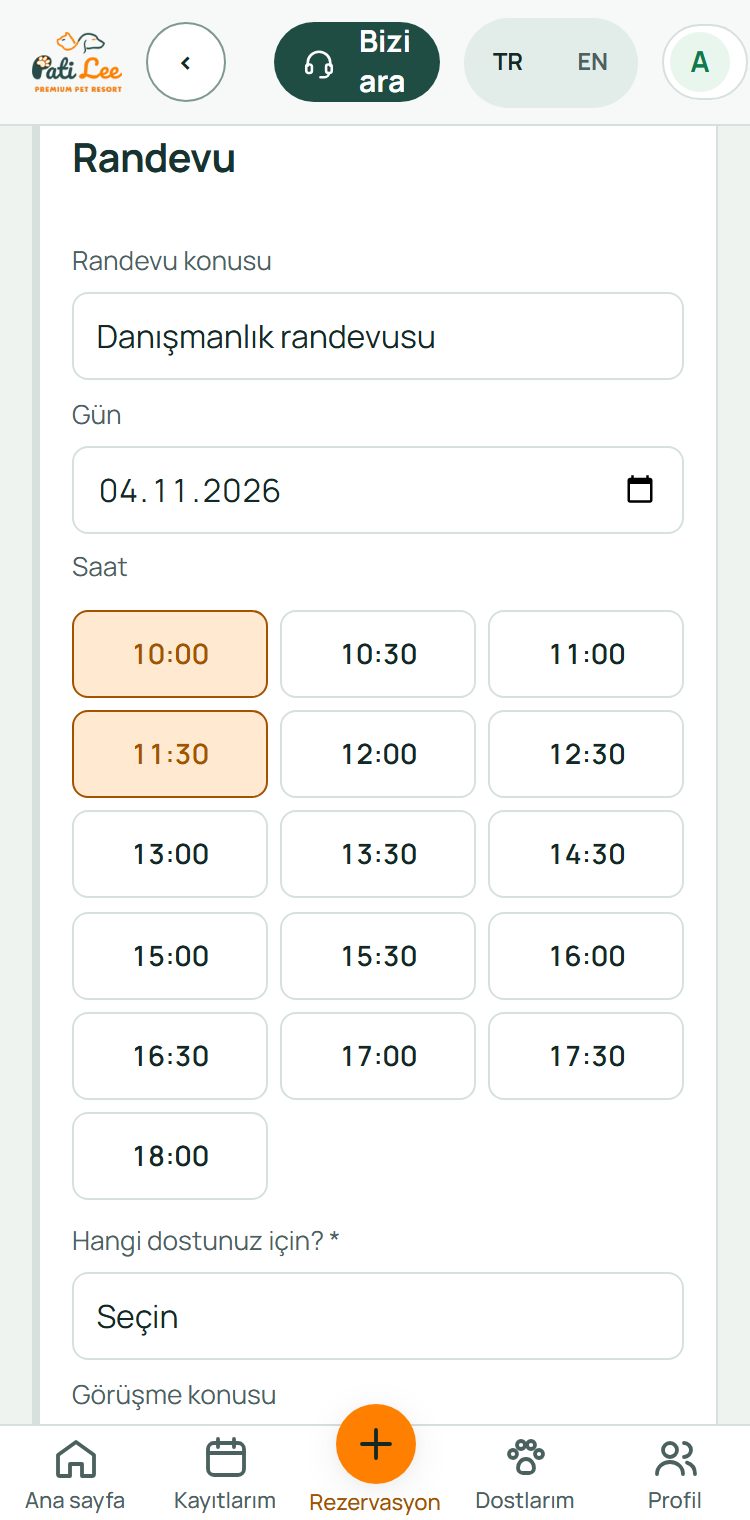
Appointment › Consultation
On the “+ Booking” screen, tap the Appointment card and choose “Consultation” as the topic.
- Pick a day, then one of the free time slots.
- The assessment appointment is for meeting the facility and your pet; for training, choose Consultation.
-
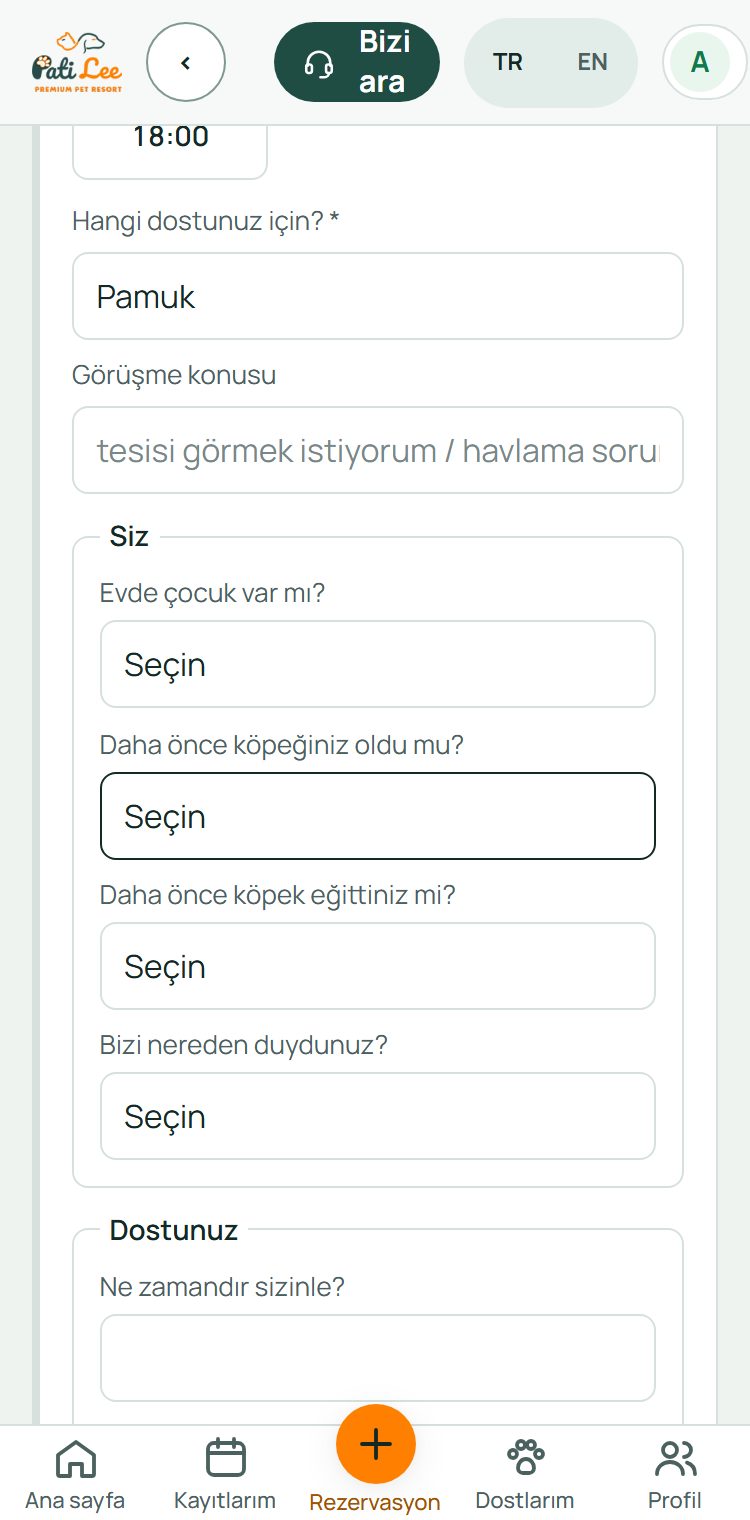
Choose your dog, pre-information form
Training consultations are for dogs; select your dog. The pre-information form then opens.
- Details already in the panel are not asked again.
- Answer the questions about your home, family and your dog’s history.
-
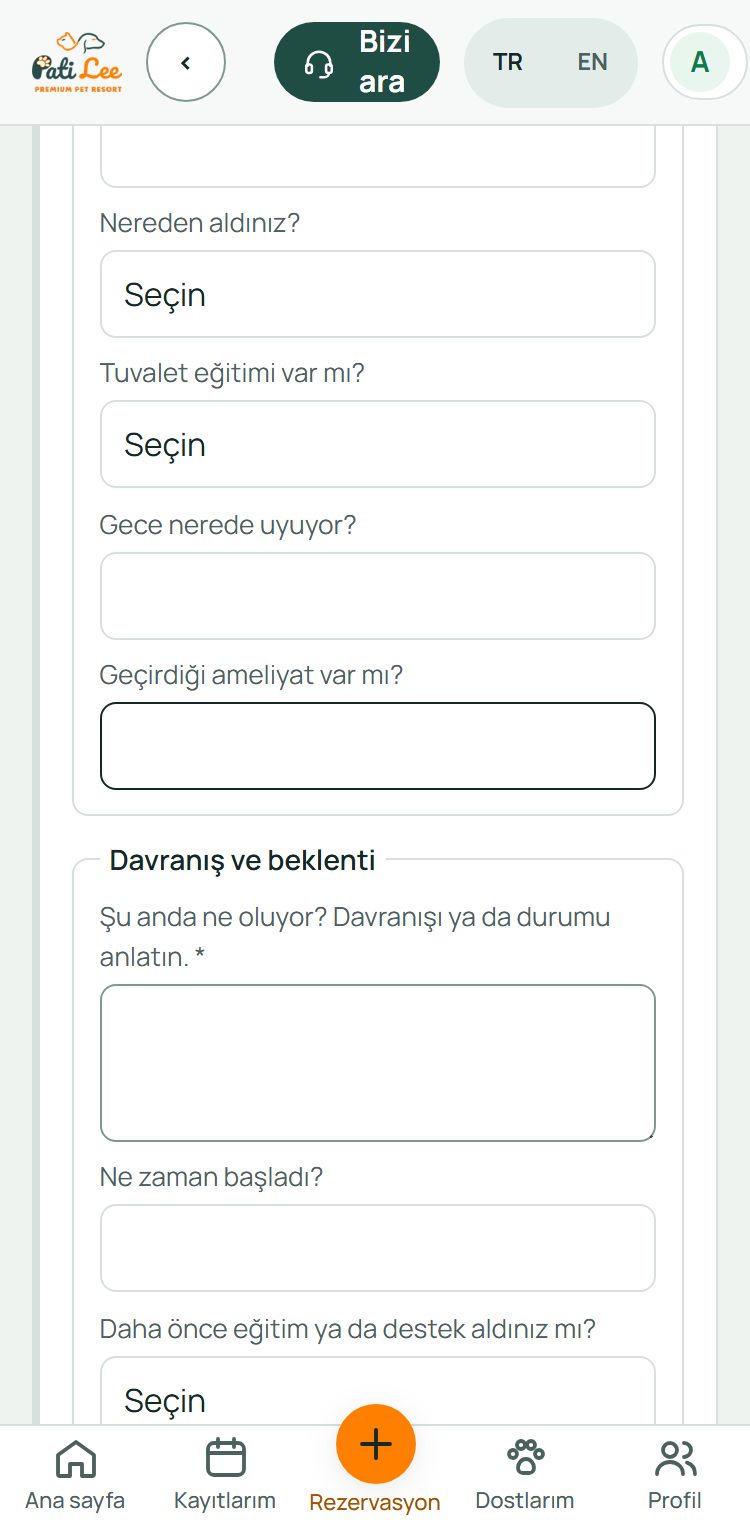
Behaviour and expectations
“What is happening now?” and “Your expectations” are required; the clearer you write, the more useful the consultation.
- If there has been an incident (a bite etc.), choose “Yes” and describe it briefly.
-
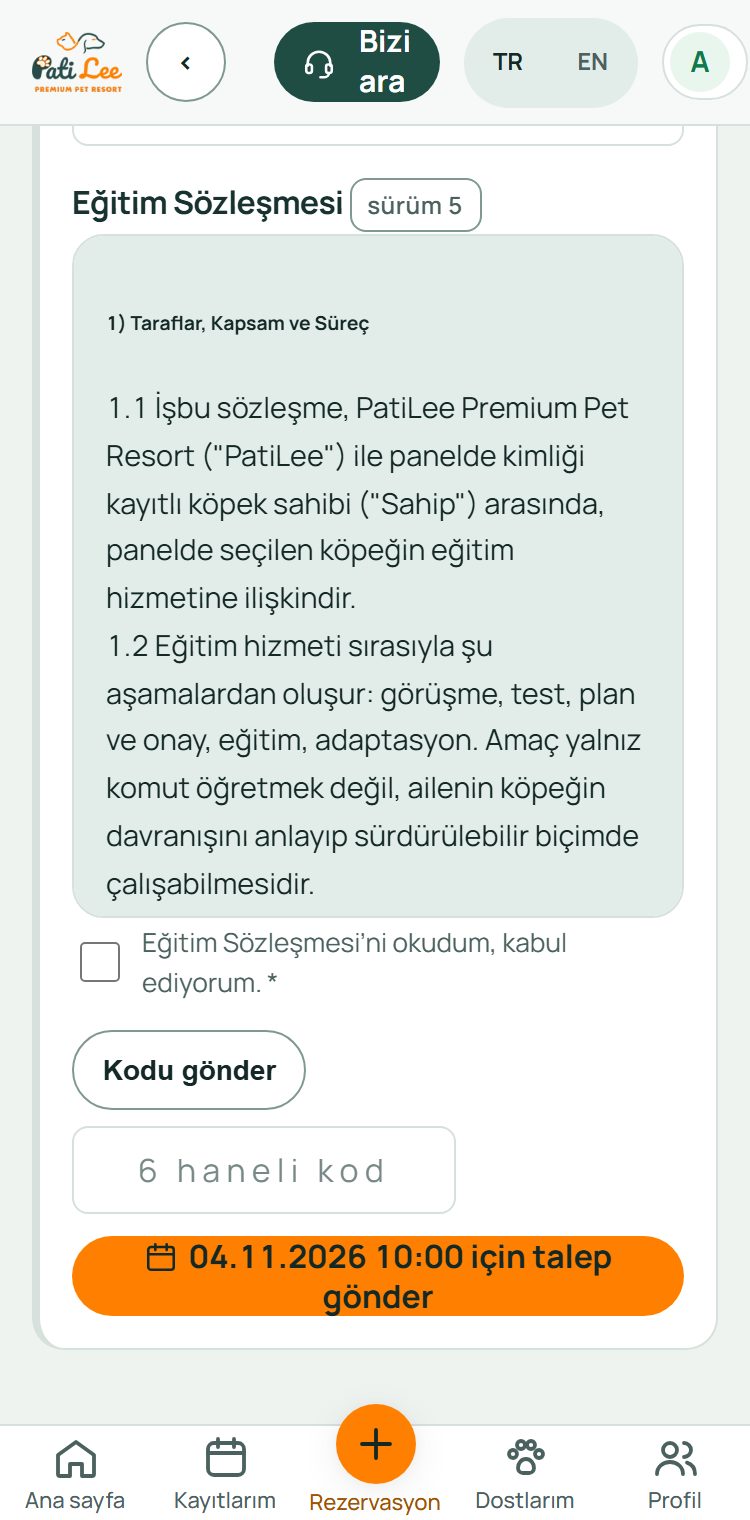
Training Agreement and sending
The Training Agreement is shown below the form. Read it, tick the box, tap “Send code”, enter the 6-digit code sent to your phone and send the request.
- You accept the agreement once; it is not asked again unless the version changes.
- After the consultation you follow the process step by step under My Account › Training: Consultation · Test · Plan and approval · Training · Adaptation.
Module 5
Payment
There is no deposit; the full amount is paid before the service. Open the Payment screen from Home or from the menu.
Swipe sideways for the next step →
-
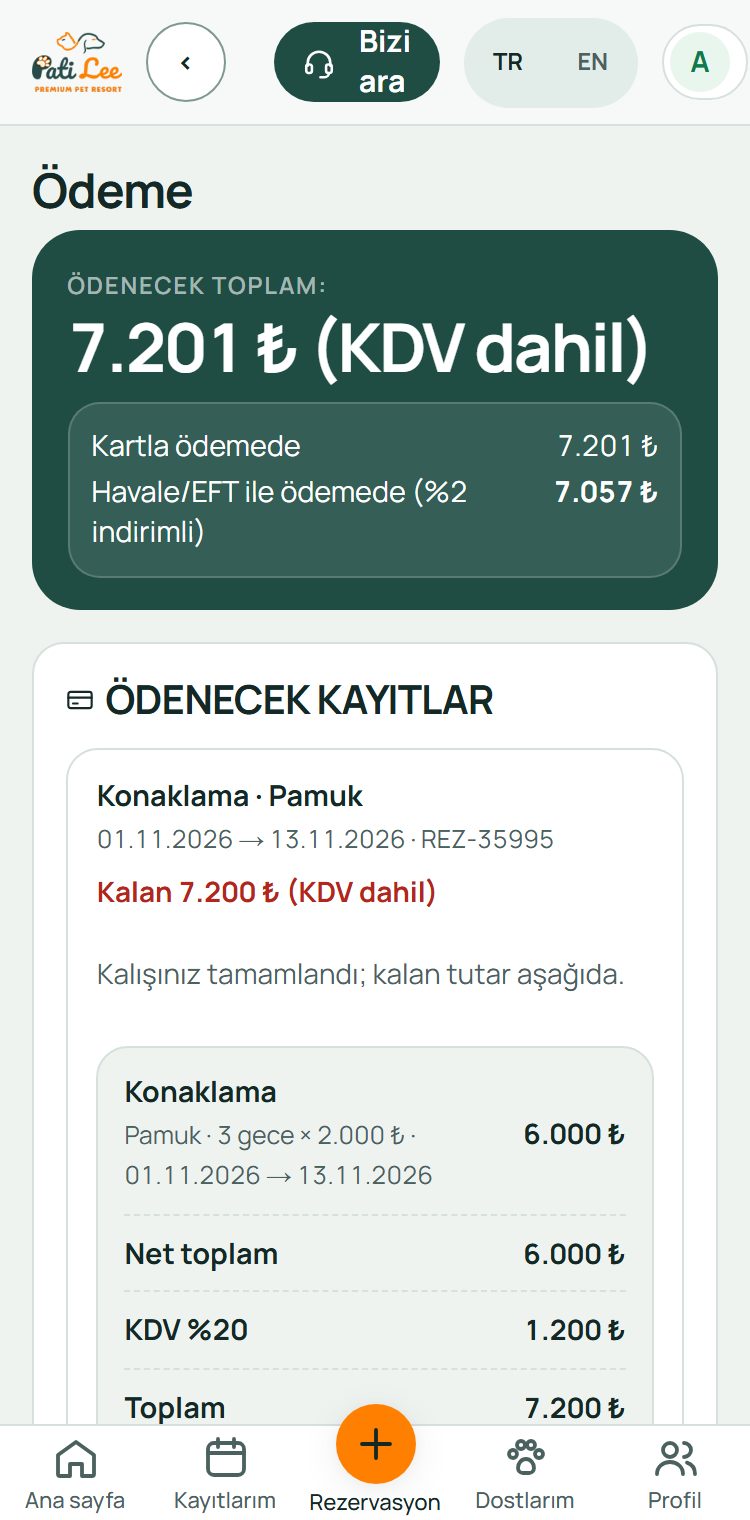
Amount due
The total due (VAT included) is at the top, followed by each booking to pay.
- The card amount and the 2% discounted bank-transfer amount are shown separately.
- Each booking shows the stay breakdown, net amount and VAT.
-
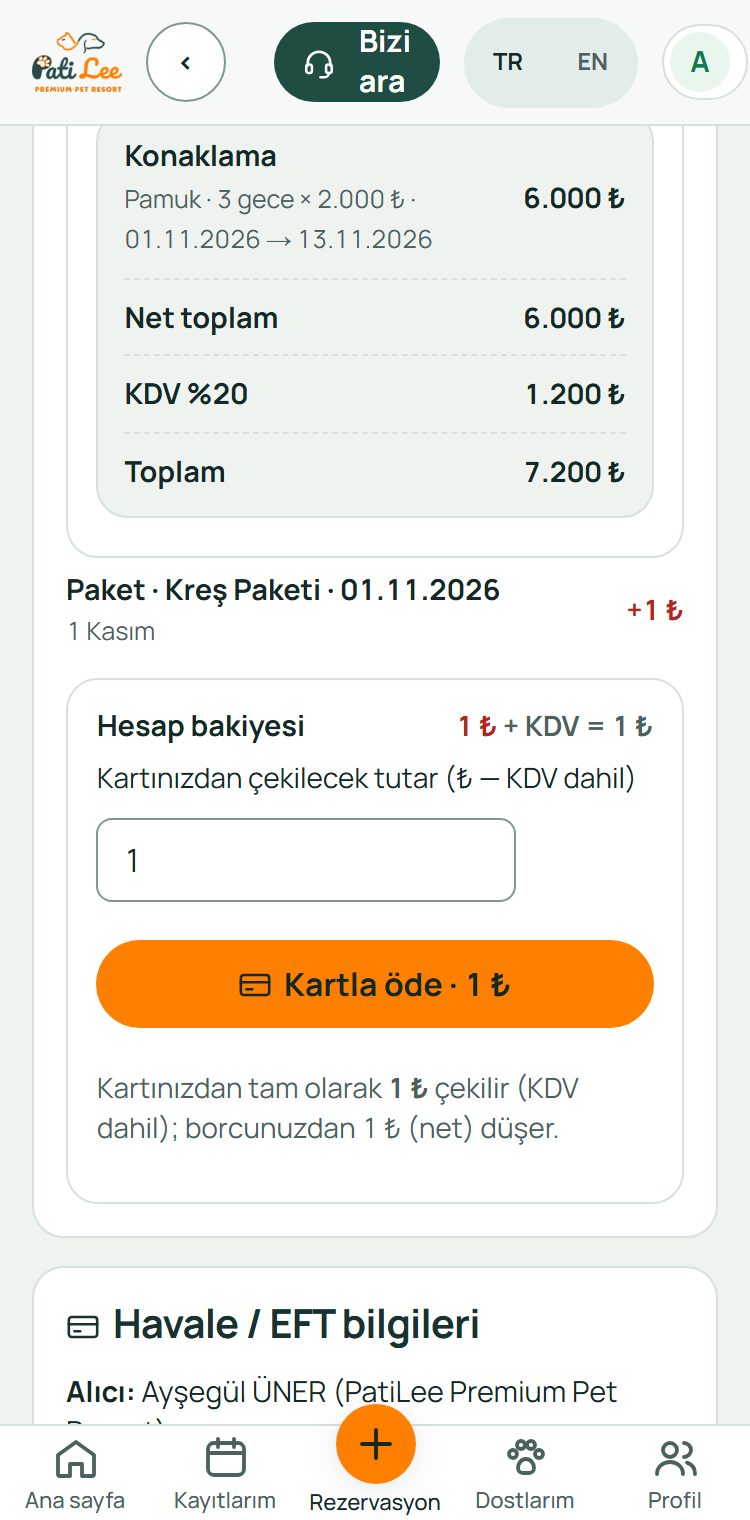
Pay by card
Tap “Pay by card”; you pay with 3D Secure on the Garanti BBVA secure payment page.
- Your card details are not stored by PatiLee.
- Once paid, your booking is confirmed automatically.
-
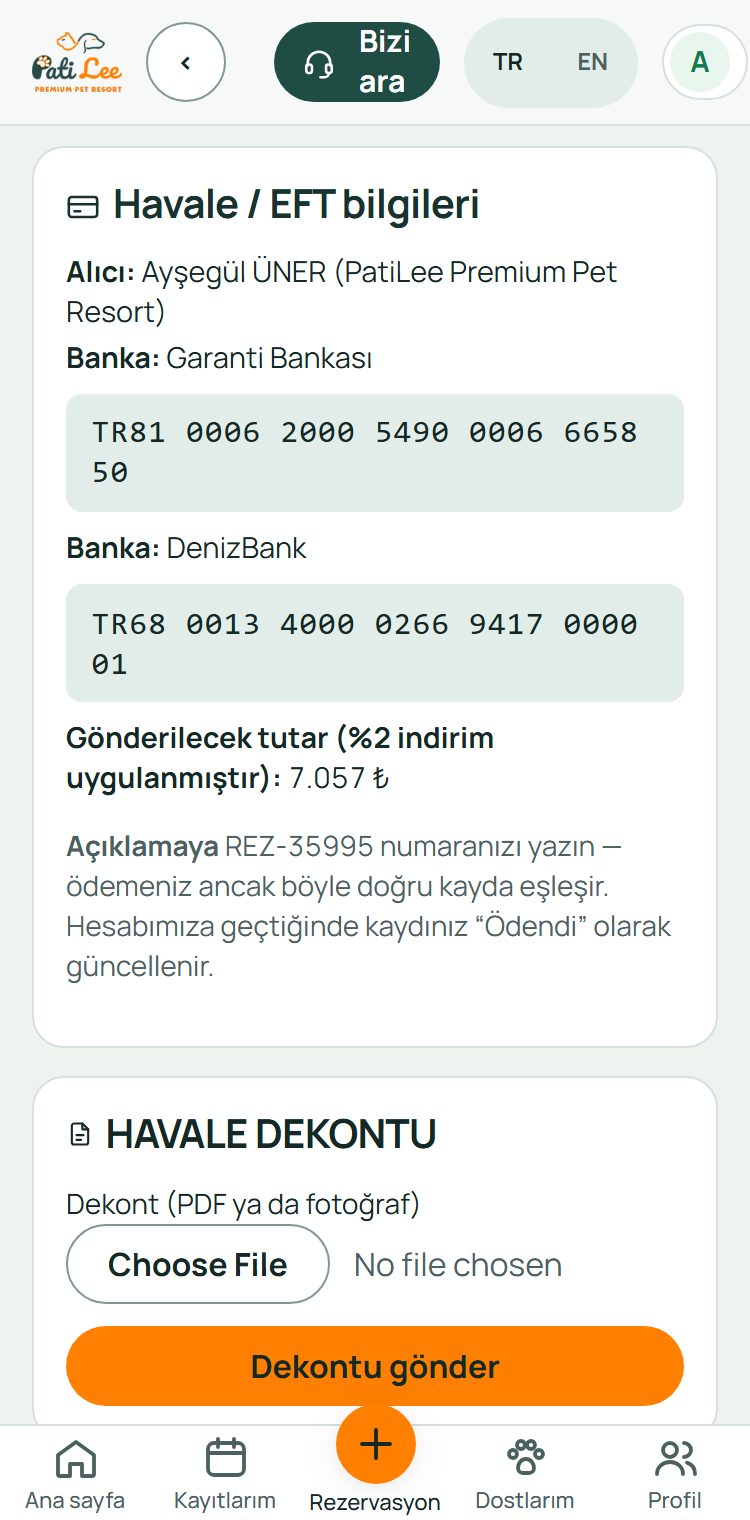
Bank transfer
The account holder and IBANs are shown on screen; send the 2% discounted amount.
- Write your REZ number shown on screen in the transfer description so we can match it.
-
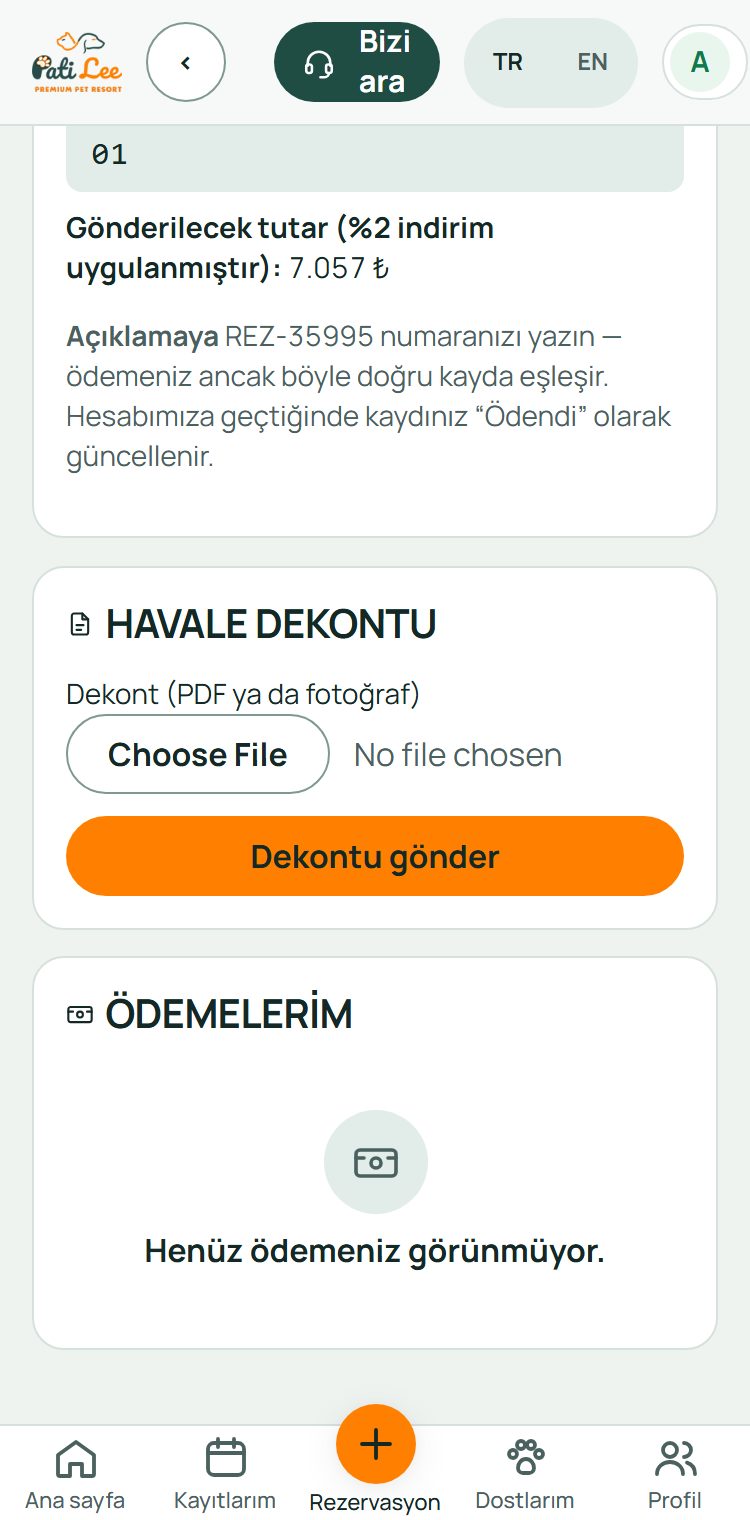
Upload the receipt
Upload the transfer receipt (PDF or photo) under “Bank transfer receipt” and tap “Send receipt”.
- The receipt is checked; if the details match, your payment is approved and your booking confirmed.
- Your payments are listed under “My payments”.
Module 6
My bookings, reports, messages and profile
The screens you use during and after a stay.
Swipe sideways for the next step →
-
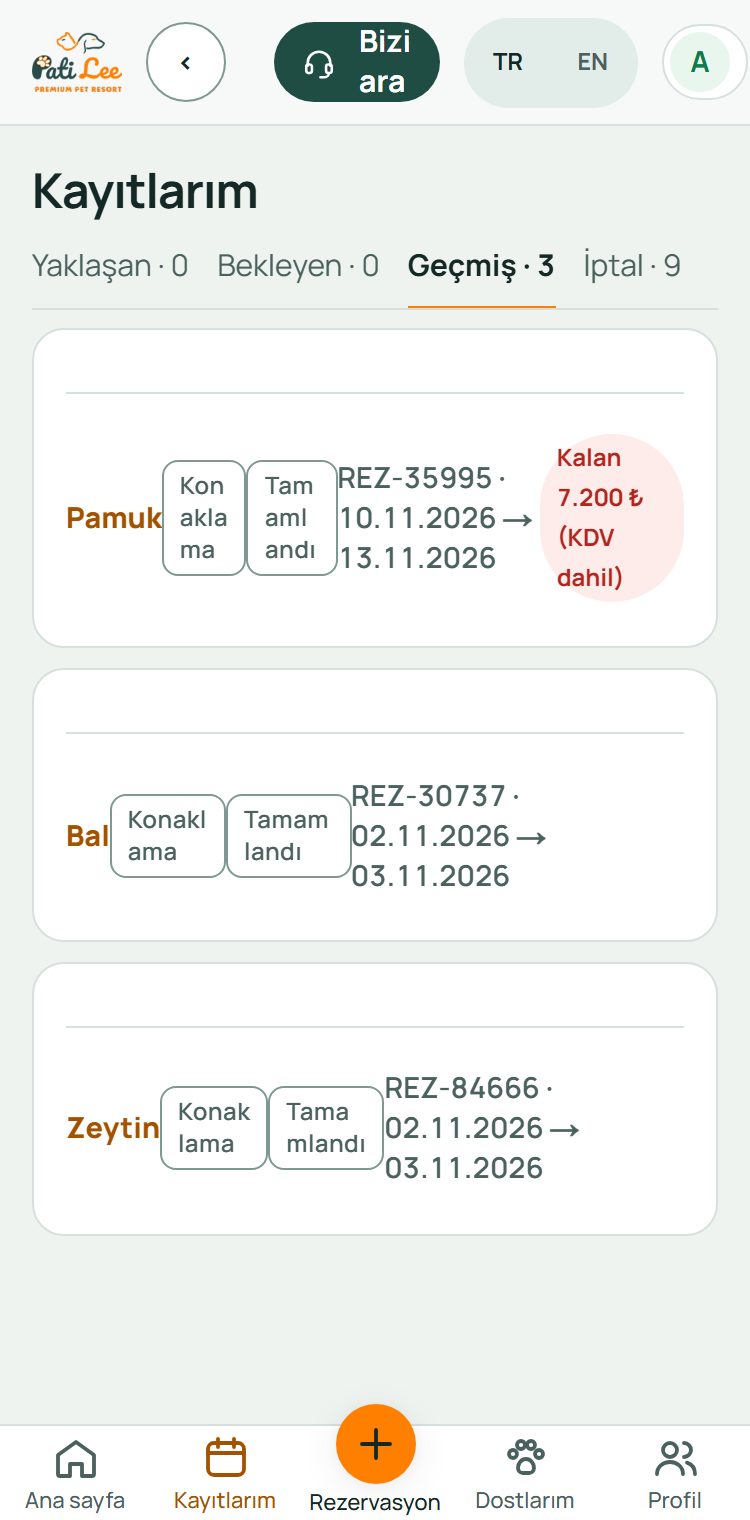
My bookings
Your bookings and appointments in four tabs: Upcoming · Pending · Past · Cancelled.
- Upcoming bookings have “Request a change” and “Cancel” buttons.
- Rebook a past stay with the same details using “Book again”.
-

Daily reports
While your pet stays with us, the daily report cards our team writes collect here: how the day went, feeding, play and photos when possible.
- The first report card appears here once the stay begins.
-
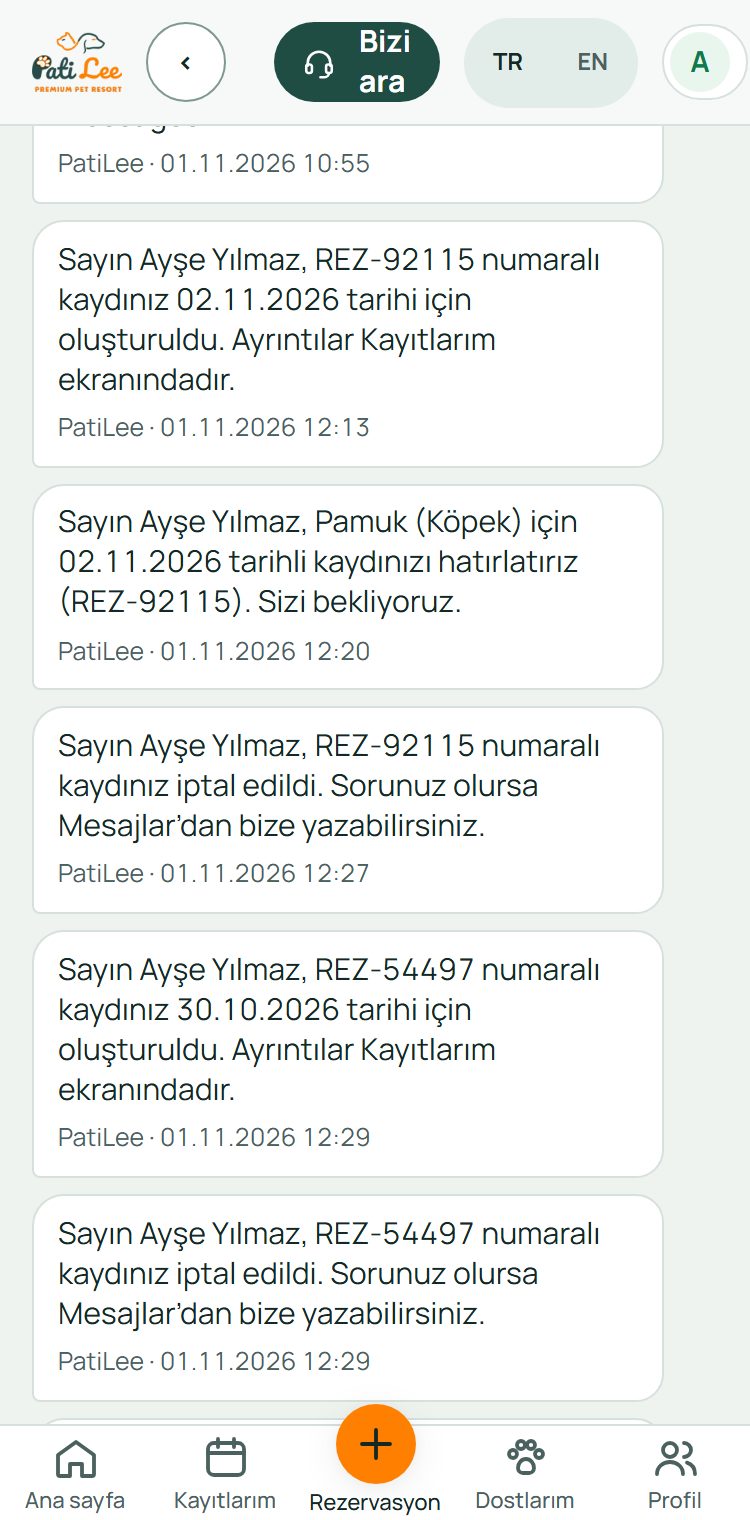
Messages
Write to us from the panel; our reply arrives in the same thread and as a notification on your phone.
- Messages sent outside working hours are not lost; we reply on the next working day.
-
Profile
Profile in the bottom bar holds your contact details, co-owner, authorised pick-up person, notification preferences and invoice details.
- Change your phone number and PIN here.
- Turn check-in/out notifications and promotional messages on or off here.
Common questions
My invitation code did not arrive or expired. What should I do?
The invitation code is valid for 48 hours. If it did not arrive or has expired, call us and we will send a new one.
I forgot my PIN.
Tap “Forgot my PIN” on the sign-in screen and follow the steps sent to your phone to set a new PIN.
Why can’t I continue with my booking?
Something is missing in your pet’s profile or your account. The To-dos list on Home and the box at the top of the booking screen list each missing item; complete them to continue.
Can I use the panel in English?
Yes. Use the TR / EN button at the top of the screen.
Ready? Sign in to My Account or contact us for an invitation code.